
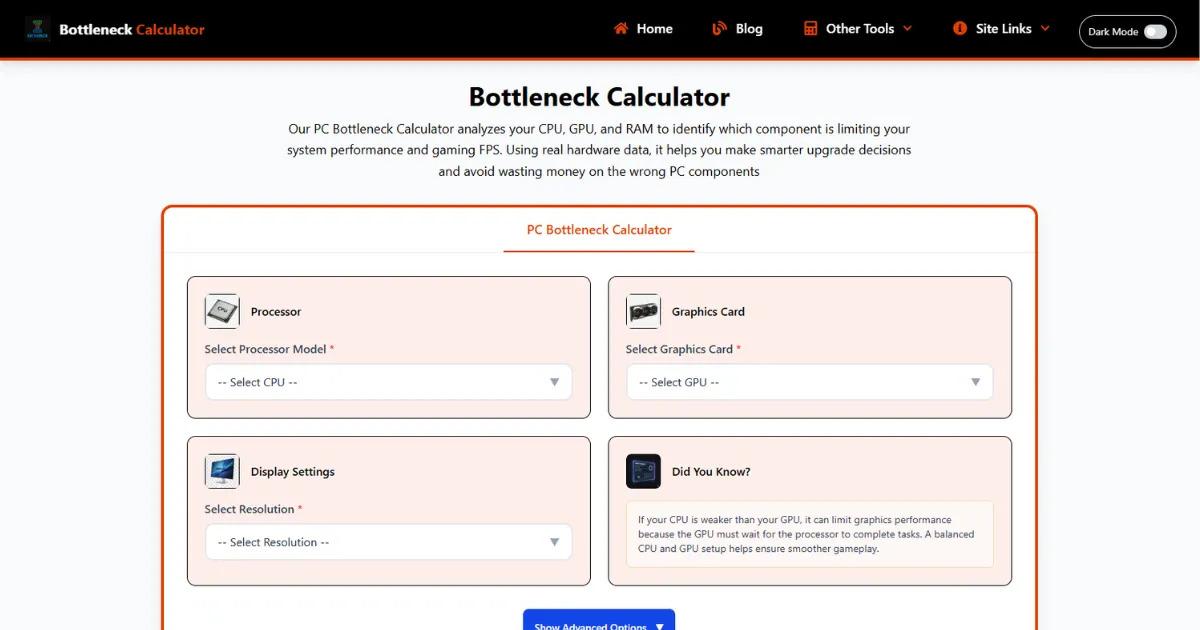
You've probably been there. You build a PC, launch a game, and something feels off. FPS is lower than expected, or the game stutters even though your specs look solid on paper. So you Google it, and suddenly you're staring at a “bottleneck calculator” telling you your system has a 23% bottleneck.
Now what?
Now people take that number at face value, panic a little, and start thinking they picked the wrong CPU or GPU. I've seen it happen countless times.
The truth is, the bottleneck calculator is not as straightforward as it looks. It doesn't measure your real system performance. It estimates relationships between components based on assumptions.
In this post, I'll break down what these calculators actually show, including insights from a cpu gpu bottleneck calculator , what their numbers mean in real gaming situations, and how to use them without getting mistaken.
What Is a Bottleneck Calculator?
A bottleneck calculator is basically an online tool that compares your CPU and GPU and tries to predict which one will limit performance.
That's it. Nothing magical.
You enter your processor, your graphics card, sometimes your RAM, and it spits out a percentage. That percentage is supposed to represent how much one component is holding back the other.
In real-world terms, a bottleneck is just the slowest part of your system at a given moment. If your CPU can only handle 100 frames per second but your GPU could push 150, then the CPU becomes the bottleneck.
These calculators try to simplify that idea into a single number. The problem is, gaming performance is not that simple. It changes depending on the game, settings, resolution, and even what’s running in the background.
So think of these tools as rough estimators, not diagnostic tools.
What Does a Bottleneck Calculator Actually Show?
Bottleneck percentage
This is the number everyone focuses on, and honestly, it’s the most misunderstood part.
That percentage does not mean you are losing that much performance. A 20% bottleneck does not mean your PC is 20% slower.
What it really means is that based on average data, one component is expected to limit the other under certain conditions. It’s more about imbalance than performance loss.
In my experience, people see anything above 10% and assume something is wrong. In reality, every system has some level of bottleneck. It’s unavoidable.
Limiting component
The calculator also tells you whether your CPU or GPU is the limiting factor.
In practice, this changes constantly while gaming. In a heavy open-world game, your CPU might be the bottleneck. Switch to a graphically intense scene, and suddenly your GPU becomes the limit.
The calculator just predicts which one is more likely to hold things back on average.
System balance
This is where the tool is actually useful if you interpret it correctly.
A balanced system means your CPU and GPU are roughly matched for the type of workload they are expected to handle. It does not mean perfect equality. It just means one part is not massively overpowered compared to the other.
For example, pairing a high-end GPU with a very weak CPU is clearly unbalanced. The calculator tries to highlight that.
FPS estimation
Some calculators show expected FPS numbers. Take these with a grain of salt.
They are based on benchmark averages, not your exact setup. They don’t account for your game settings, drivers, thermal performance, or background apps.
In real life, I’ve seen systems perform 30 to 40 percent differently from these estimates.
Upgrade suggestions
Most tools will suggest upgrading either your CPU or GPU.
Sometimes this is helpful. If you pair something like an RTX 4080 with an entry-level CPU, the suggestion makes sense.
But often, it’s too generic. It doesn’t consider your actual usage. You might not even need that upgrade depending on the games you play.
How Bottleneck Calculators Actually Work
These tools are not measuring your system live. They rely on pre-collected data.
They use benchmark databases where different CPUs and GPUs are tested in various games. Then they compare average performance differences between components.
From there, they apply assumptions. For example, they assume typical game behavior, average resolution like 1080p, and standard settings.
Resolution plays a huge role here. At lower resolutions, the CPU matters more. At higher resolutions like 1440p or 4K, the GPU does most of the work.
Most calculators don’t adjust deeply for this. They either oversimplify it or ignore it.
This is where things break. The tool might say your CPU is a bottleneck, but if you’re gaming at 4K, the GPU will likely be the limiting factor anyway.
They also don’t consider real-world variables like thermal throttling, driver optimization, or background processes.
So what you get is a generalized prediction, not a real measurement.
Types of Bottlenecks
CPU bottleneck
This is when your processor cannot keep up with the GPU.
In real life, this shows up as inconsistent frame rates. You might see decent average FPS, but the game feels stuttery. Frame drops become noticeable, especially in crowded scenes or large maps.
I’ve seen this a lot in games like Warzone or GTA V where the CPU has to manage a lot of background calculations.
GPU bottleneck
This is actually what most gamers want.
It means your graphics card is fully utilized. Your CPU is doing its job, and the GPU is the main limiter.
You’ll notice high GPU usage, stable performance, and predictable FPS behavior.
This is normal and expected, especially at higher resolutions.
RAM and storage bottlenecks
These are often ignored by calculators.
If you don’t have enough RAM, games can stutter or crash. Slow storage can cause long loading times or texture pop-in.
These don’t show up as a neat percentage, but they absolutely affect performance.
In my experience, upgrading from 8GB to 16GB RAM can feel like a bigger improvement than swapping CPUs in some cases.
How to Read Bottleneck Results
Here’s how I personally interpret these percentages.
Anything under 10% is basically a non-issue. You won’t notice it in real gameplay.
Between 10% and 20% is still fine for most users. This is where many balanced systems fall.
Above 20% is where you should start paying attention, but even then, it depends on your use case.
If you play competitive games at low settings, CPU bottlenecks matter more. If you play AAA titles at high resolution, GPU bottlenecks are expected.
The key thing people miss is that bottlenecks are situational. Your system might behave differently from one game to another.
So don’t treat the number as a final verdict. Treat it as a hint.
Are Bottleneck Calculators Accurate?
Short answer, not really. At least not in the way people think.
They are not useless, but they are not precise.
In real-world testing, I’ve seen the same CPU and GPU combo perform very differently depending on the game, resolution, and system configuration.
These calculators simplify a very complex relationship into a single percentage. That’s the main limitation.
A common misconception is that they reflect real-time performance. They don’t. They reflect theoretical averages.
Another mistake people make is trusting them more than actual benchmarks or gameplay videos. Real-world data is always more reliable.
So accuracy is relative. They are okay for rough guidance, but not for final decisions.
What Affects Bottleneck Results
Resolution is a big one. At 1080p, the CPU matters more. At 1440p and above, the GPU takes over.
Game type also matters a lot. Strategy games and simulations are CPU-heavy. Graphically intense games rely more on the GPU.
Background processes can also change things. If your CPU is busy with other tasks, it can become a bottleneck even if it normally wouldn’t.
Then there’s hardware combinations. Not all CPUs and GPUs scale the same way. Some pairings just work better due to architecture and optimization.
Cooling and power delivery also play a role. If your components are overheating or throttling, performance drops regardless of what the calculator says.
How to Fix a Bottleneck
First, don’t rush to upgrade.
If you’re CPU bottlenecked, try increasing resolution or graphics settings. This shifts load to the GPU and can actually smooth things out.
If you’re GPU bottlenecked, lowering settings or enabling technologies like DLSS or FSR can help.
Sometimes, simple tweaks like closing background apps or updating drivers can make a noticeable difference.
If you do upgrade, make sure it makes sense for your use case. Don’t just chase a lower bottleneck percentage.
In my experience, balanced upgrades work best. Instead of going all-in on one component, bring the weaker part up to a reasonable level.
Should You Trust Bottleneck Calculators?
You can use them, but don’t rely on them.
Think of them as a starting point, not the final answer. They are useful for spotting obvious mismatches, but they don’t reflect real gameplay perfectly.
If a calculator tells you something looks off, double-check with benchmarks, gameplay videos, and real user experiences.
That’s where the truth usually is.
Real Example
Let’s say you pair an Intel i5-10400 with an RTX 4060.
A bottleneck calculator might say there’s a 20 to 25% CPU bottleneck.
Sounds bad, right?
In real gameplay, at 1080p in CPU-heavy games, you might see some limitations. FPS might not reach the GPU’s full potential.
But switch to 1440p, and suddenly the GPU becomes the main limiter. Performance feels smooth, and the bottleneck is barely noticeable.
This is exactly why blindly trusting the percentage can lead you in the wrong direction.
Conclusion
At the end of the day, a bottleneck calculator is not a performance tester. It’s more like a rough advisor trying to guess how your parts might behave together based on averages. The percentage it shows is not a measurement of lost FPS, and it’s definitely not a verdict on whether your PC is good or bad. What it really highlights is balance, not performance. That’s the key difference most people miss.
From real-world experience, gaming performance is far more dynamic than any calculator can predict. Your resolution, the specific game engine, your settings, even your background apps all change how your system behaves. A setup that looks “bottlenecked” on paper can feel perfectly smooth in actual gameplay. On the flip side, a system that looks balanced might still stutter if something else is off.
So the smarter way to use these tools is as a sanity check, not a decision-maker. If the calculator flags a major mismatch, it’s worth looking into. But before upgrading anything, always cross-check with real benchmarks, gameplay videos, and your own experience. That’s where the truth lives.

 English
 Magyar
 Arabic
 French
 Spanish
 Portuguese
 Turkish
 Dutch
Dutch
 Italiano
 Russian
 Romaian
 Portuguese (Brazil)
 Greek
Greek